
 Test Cycles for Jira
Test Cycles guide
How to set up Test Cycles, write test steps or import tests from Zephyr, run test cycles, send results from CI, file bugs from failed runs and read coverage.
Install
A Jira admin installs Test Cycles from its Atlassian Marketplace listing. Free for sites with up to 10 users. Sites with 11 to 100 users pay $1.50 per user per month, less per user on bigger sites. 30‑day free trial.
The app runs on Atlassian Forge, so there is nothing to host on your side. Right after the install, the app’s Get started page in Manage apps lists the setup steps below.
To open the app, go to a project and choose the Tests tab at the top. If the row doesn’t show it, open More at the end of the row. You can drag Tests from More into the row, and it stays there for that project. Every project’s Tests page is also listed in Jira’s sidebar under Apps, Test Cycles.
Set up a project
Each project that holds tests needs an issue type for tests and a link type that connects tests to stories. A Jira admin sets both up once.
The quick way: Create it for me
While a part is missing, project admins see a Create it for me button on the Tests page, under Settings. Only a Jira admin’s click works: anyone else gets a note to ask one. Test Cycles adds what the project lacks: the Tests link type, the test issue type, and that type in the project’s issue type scheme. If the site already has an issue type of that name, Test Cycles uses it. Jira adds a new issue type to every project that uses the Default Issue Type Scheme too, so Test Cycles asks before it creates one. In a team-managed project the button adds only the link type, and a project admin adds the issue type under Project settings, then Work types. The parts below do the same by hand.
The Test issue type
Tests are Jira issues of one issue type, called Test unless you pick another. Add an issue type called Test to the project’s issue type scheme. If the project already uses another type for tests, a project admin picks it on the Tests page:
- Tests
- Settings
- Issue type used for tests
The Tests link type
Create the link type in Jira’s settings:
- Settings
- Work items
- Issue linking
- Name
- Tests
- Outward description
- tests
- Inward description
- is tested by
The Settings tab on the Tests page shows whether each part is ready. Until both are, the Tests page asks you to finish the setup.
To try a test cycle before you write your own tests, load the sample file.
Write test steps
Open a Test issue and choose the Tests panel from the app actions on the issue. Each step has three fields: the action, the test data and the expected result.
- Add step adds a step at the end.
- Up and Down move a step, and Delete removes it.
- Save steps saves your changes.
The panel also lists the stories the test covers, under Tests these issues, and its runs: the cycle, the result, when it ran and any bugs filed from the run.
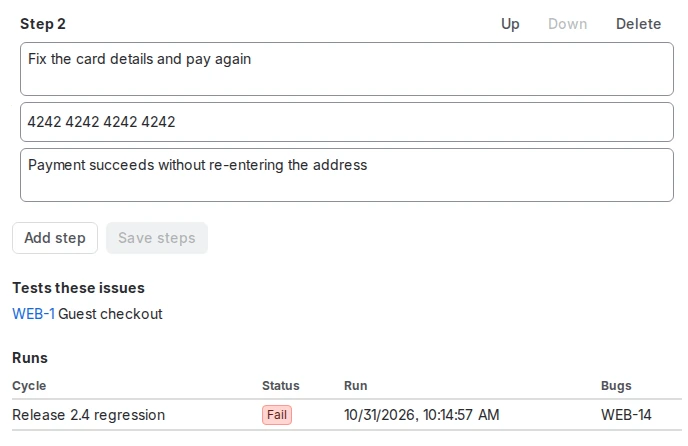
On a story, or any other issue that isn’t a test, the same panel lists the linked tests with their latest result. Type a summary and press Create test to make a new test, linked to the story.
If someone changes a test’s steps while a tester runs it, saving the run stops with a message to reload. That way every result belongs to the steps it was recorded against.
Import from Zephyr
Export your tests from Zephyr Squad or Zephyr Essential to Excel and load the file on the Import tab. What the import does depends on where the tests come from: see From Zephyr Squad and From Zephyr Essential.
1. Export your tests
In Zephyr, open Test Cases, select the tests you want and export them to Excel.
Menu paths for both Zephyrs, and what each export leaves out, are in How to migrate from Zephyr Squad or Zephyr Essential.
From Xray, export with a template that has the issue key and the step columns Action, Data and Expected Result. The steps land on the Test issues the project already has, and a Generic or Cucumber test’s definition becomes its one step. Export before you remove Xray, since it keeps the steps in its own storage.
Steps from another tool or a spreadsheet work too, as a CSV with the columns Issue key, Step, Test Data and Expected Result, for Test issues the project already has.
2. Load the file
- Tests
- Import
Choose the .xlsx or CSV file, or paste CSV text and press Check pasted CSV. Column names don’t need to match exactly: Test Step, TestStep and Action all count as the step column. If a file still won’t load, send the column names to support@pretzelhands.app and we’ll tell you which headers to rename. The names are enough, we don’t need the test content.
3. Check the dry run
Nothing is saved yet. The dry run shows how many tests the file holds, how many existing tests get steps, how many new Test issues will be created, and the skipped tests with their reasons. Common reasons:
- No issue with this key in this project, or you can’t see it
- Not a test issue
- No steps in the file
- Already has steps (see Tests that already have steps)
- More than 200 steps
4. Import
Press Import steps for N tests, or Import N tests when the file holds Zephyr Essential test cases.
From Zephyr Squad
Zephyr Squad tests are Jira Test issues already. The import adds their steps (step, test data, expected result) to those issues, matched by issue key. It creates no issues, and the keys, links, comments and attachments of those issues stay as they are.
From Zephyr Essential
Zephyr Essential keeps test cases as its own records, with keys like WEB-T12, outside Jira’s issues. The import creates a Test issue in the project for each test case, with:
- its steps: step, test data and expected result
- its objective and precondition, in the description
- its labels
- Tests links to the Jira issues listed in its coverage
A plain-text test script becomes one step. A BDD script goes into the description as text. The description also notes the Zephyr key and folder the test came from.
Importing the same file again creates nothing twice. Test cases imported before count as tests that already have steps (see the next section). Creating tests needs permission to create and edit issues in the project, and adding their Tests links needs permission to link issues.
No tests to import yet?
Download the sample file (CSV, 5 tests with 3 steps each, for a sign-in page and a shop checkout) and load it on the Import tab. It creates five Test issues with their steps, so you can add them to a test cycle and run them before you write your own. Each description names its sample key, SAMPLE-T1 to SAMPLE-T5, and the issues get the labels smoke and checkout. Delete the five issues when you’re done.
Tests that already have steps
- Leave them alone
- The default. Tests with steps keep them and are skipped.
- Replace their steps
- The steps in the file overwrite the test’s steps. Results of earlier runs then no longer line up with the steps.
What isn’t imported
- Run history
- Zephyr’s executions are not imported yet. Keep a copy of past results from Zephyr if you need them, and export your tests before you uninstall Zephyr.
- Zephyr’s cycles
- Not imported. Create your next cycles in Test Cycles.
- Attachments
- Not imported. On Zephyr Squad tests, files attached to the Test issue itself stay, since that issue doesn’t change.
- Folders
- Not kept as a structure. Each Test issue created from a Zephyr Essential test case notes its folder name in the description.
- Custom fields
- Not imported.
Test cycles
A test cycle is a set of tests you run together, for a sprint, a release or a regression pass.
- Tests
- Test cycles
- New test cycle
Give the cycle a name. The version and the environment, such as Staging, Chrome, are optional. Press Create cycle.
Add tests
In the cycle, type a JQL query, for example labels = checkout, and press Add tests. With the box empty, Add tests takes every test in the project. Only issues of the project’s test type join the cycle, and each test joins it once.
Each click adds up to 1,000 tests. If the query finds more, click again for the next 1,000. In our tests, adding 1,000 tests took about 5 seconds.
Follow progress
The cycle shows a progress bar, a count for each result, and every test with its result, its assignee, who ran it and when. Remove takes a test out of the cycle. To assign a test, open it with Run and pick a person under Assigned to.
Rename or archive a cycle
Edit changes a cycle’s name, version and environment. Archive takes a finished cycle off the list. Its results stay, in the cycle and in the Tests panel, but nobody can change them. A CI upload to its id answers 409, and an upload by its name goes to another open cycle with that name or creates a new one. Show archived cycles, under the list, finds it again, and Restore opens it back up, unless an open cycle already has that name.

Run a test
Press Run next to a test in the cycle. The run screen lists each step with its action, test data and expected result.
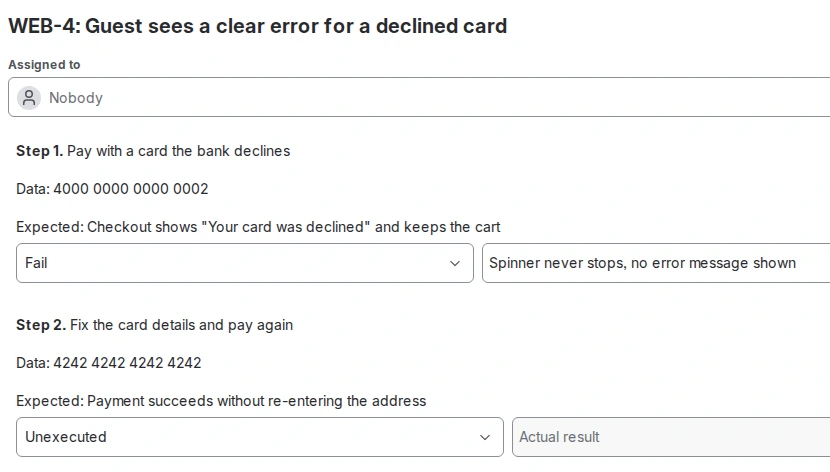
- Pick a result for each step: Pass, Fail, In progress, Blocked or Unexecuted. Type what happened under Actual result.
- Leave the overall result empty and the steps decide it, or pick one by hand. A test without steps takes the overall result you set.
- Add a comment for notes on the whole run.
- Save and next saves and opens the next unexecuted test in the cycle. Save keeps you on this test.
How the steps decide the overall result:
- Fail
- A step failed.
- Blocked
- No step failed, and a step is blocked.
- Pass
- Every step passed.
- Unexecuted
- No step has a result yet.
- In progress
- Anything in between, for example two steps passed and one hasn’t run.
A test has one result per cycle, and running it again in the same cycle replaces that result. For a fresh run, add the test to a new cycle. The Tests panel on the test keeps its runs from every cycle.
Bugs from failed runs
On the run screen, Create bug files a Bug in the project right away and links it to the test.
- Summary
- The test key and summary, for example WEB-4 failed: Guest sees a clear error for a declined card.
- Description
- The cycle, your comment, and a table of the steps with their test data, expected result, result and actual result.
- Link to the test
- Relates, or Blocks if your site has no Relates link type.
- Issue type
- Bug. A project without a Bug type gets its first standard issue type other than Epic.
The bug’s key shows on the run screen and in the test’s runs. Filing a bug needs permission to create issues in the project.
CI results
Your CI pipeline sends its JUnit XML report to Test Cycles after the tests run. Each testcase that names a Test issue becomes that test’s result in a test cycle, next to the results your testers record by hand.
Create a token
- Tests
- Settings
- CI results
A project admin types what the token is for, such as GitHub Actions, and presses Create token. Copy the token into a secret variable of your CI, named TESTCYCLES_TOKEN in the examples. The token shows once. Test Cycles stores only a hash of it, so a lost token is gone: revoke it and create a new one.
A token belongs to one project and writes only to that project’s cycles. A project holds up to 20 tokens. Revoke refuses new uploads with that token within seconds, and an upload already saving its results finishes. The same section shows the web trigger URL of your Jira site, examples for curl, GitHub Actions and GitLab CI with that URL filled in, and the last upload of each token.
Send the report
Send the report file as the body of a POST request, with the token in the Authorization header:
curl --fail-with-body -sS "$TESTCYCLES_URL" \
  -H "Authorization: Bearer $TESTCYCLES_TOKEN" \
  -H "Content-Type: application/xml" \
  --url-query "cycle=CI main" \
  --url-query "build=$GIT_COMMIT" \
  --data-binary @results.xml
$TESTCYCLES_URL stands for the web trigger URL shown under CI results, and $GIT_COMMIT for the commit SHA. --url-query needs curl 7.87 or later. Keep the token in your CI’s secret variables, never in the pipeline file. In GitHub Actions, run this step with if: ${{ !cancelled() }}. In GitLab CI, put it in after_script. In a Jenkins pipeline, put it in post { always { ... } } and read the token with withCredentials, from a Secret text credential. All three send the report when tests fail.
cycle- Required. A cycle id, or a cycle name. A name picks the oldest open cycle with that name in the project, or creates the cycle. A value of digits only counts as an id.
build- Optional, and recommended: pass the commit SHA. Saved on the cycle and on each result, and named in the result’s comment. See Builds and matrix jobs.
version- Optional. The exact name of a version in the project, set as the cycle’s version.
environment- Optional. Saved on the cycle, for example Staging or Chrome.
replace- Optional. Only
replace=manual, which lets this upload overwrite results a person recorded. See How results are saved.
A version, build or environment you send replaces the cycle’s current one.
Pick a cycle name
Use one stable cycle per branch type, such as CI main for your default branch. The examples on the Settings tab send results from the default branch only. For pull requests, send them to one shared cycle, such as CI pull requests, if you want them at all. CI creates at most 20 new cycles per project and day (UTC), so a cycle per run or per pull request stops at that limit.
Name tests by their key
Test Cycles looks for a key of the project, like WEB-12, in each testcase: first in its name, then in its classname, then in a property named jira or test_key. The first key found counts, and only Test issues of the project match. Testcases without a key, or whose key isn’t found as a test in the project, are skipped and listed under the token’s last upload. CI never creates issues.
- Playwright, Cypress, Jest
- Put the key in the test title, for example
test('WEB-12 guest can pay', ...). Write the report with Playwright’s junit reporter, mocha-junit-reporter for Cypress or jest-junit. - pytest
- Test function names have no dashes, so record the key as a property inside the test:
record_property("jira", "WEB-12"). Run pytest with--junitxml=results.xml. - Tests tagged for Zephyr Essential
- Keep the Zephyr test case keys in your tests, as WEB-T12 or as a method-name prefix like WEB_T12_login. Once you have imported those test cases, each key counts as the Test issue the import made from it.
- JUnit 5 with Maven
- Method names have no dashes either. Put the key in
@DisplayName("WEB-12 guest can pay")and set Surefire to report display names. Surefire writes one file per test class: send each file.
How results are saved
- Pass
- The testcase passed.
- Fail
- The testcase has a failure or an error.
- Unexecuted
- The testcase was skipped. This only marks tests without a result in the cycle. A skipped testcase never clears a result.
Tests not in the cycle yet join it, and the cycle shows CI under Run by. A Pass or Fail from CI replaces an earlier CI result of the test in that cycle and clears the results of single steps, which belong to an older run by hand. The comment says how long the test took and, for a failure, holds the first 2,000 characters of its message.
Results a person recorded stay. CI skips those tests and lists them under the token’s last upload as kept manual results, and the response says saved-kept-manual. Add replace=manual to overwrite them, comment included. A note a person wrote on a test without a result stays as well.
When several testcases name one test, for example a test run in two browsers, one failure makes the test fail, and the comment says how many testcases there were. Results that wouldn’t change aren’t written again, so sending the same report twice changes nothing and adds nothing to the history. CI jobs that send to the same new cycle name at once, such as the shards of one build, share one cycle.
Builds and matrix jobs
A matrix build sends one report per job, for example one per browser or Python version. With the same build on every job, a Fail stays for that build: a later Pass from another job of the same build doesn’t replace it. A new build starts fresh. Without build, the last upload wins, so a passing job sent after a failing one hides the failure. Pass the commit SHA as build, as the examples do.
Responses
The response is a short JSON message with a fixed text for each outcome. It doesn’t list what matched: the token’s last upload in Settings does. With --fail-with-body, curl fails the CI step on an error and prints the message.
- 200
- Saved. The result field says
saved-unmatchedwhen some testcases matched no test, andsaved-kept-manualwhen tests kept a result a person recorded. - 400
- The body is not a JUnit XML report or holds a DOCTYPE, the cycle parameter is missing, or
replacehas a value other than manual. - 401
- The token is missing, wrong or revoked.
- 404
- No cycle with that id, or no version with that name.
- 409
- The cycle is archived, also when someone archives it during the upload.
- 413
- The report is over 2 MB or has over 5,000 testcases. Split it and send each part.
- 422
- No testcase names a Test issue of the project. Nothing was saved.
- 429
- CI created 20 cycles in the project today (UTC). Nothing was saved. Send to an existing cycle.
- 503
- Jira didn’t answer, another upload is creating the same cycle, or the report took too long to save. Send it again, split if it is large. Results saved already stay and aren’t logged twice.
Coverage
- Tests
- Coverage
Pick a fix version. Every issue in it, apart from tests, epics and sub-tasks, shows the keys of its linked tests and one coverage result, worked out from each test’s latest run in any cycle:
- Fail
- A test failed on its latest run.
- Blocked
- No test failed, and a test is blocked.
- Pass
- Every test passed on its latest run.
- Unexecuted
- None of its tests has run yet.
- In progress
- Anything in between, for example one test passed and one hasn’t run.
- No tests
- No test links to it with the Tests link type.
Clear the version to see issues without a fix version. The Tests panel on each story shows the same coverage result, plus the latest result of each test.
Permissions
Test Cycles works as the person signed in. It shows only what that person sees in Jira and acts with their permissions. CI uploads are the one exception: they use a project token, see CI results.
- Browse projects
- See the Tests page, cycles, runs and coverage.
- Edit issues
- Write steps on a test, create cycles, add, assign and remove tests, record results and import steps.
- Create issues
- Create bug, Create test, and importing Zephyr Essential test cases as new tests (with Edit issues).
- Link issues
- Link a new test to its story, link a new bug to its test, and add the coverage links of imported Zephyr Essential test cases.
- Administer projects
- Pick the issue type used for tests, and create and revoke CI tokens.
- Jira admin
- Add the Test issue type and the Tests link type, by hand or with Create it for me.
Version 3 of Test Cycles asks for one more app permission, to manage Jira configuration. Create it for me needs it, and Test Cycles uses it only when someone presses that button. Jira still checks that person’s own permissions, so only a Jira admin can add the types. A site on version 2 stays there until a site admin accepts the new permission in the app’s update.
A test hidden from you by issue security shows as Hidden in a cycle. It still counts toward the totals, but you can’t open or run it.
Limits
- Test Cycles is for Jira Cloud.
- Add tests takes up to 1,000 tests per click.
- A cycle lists 100 tests per page.
- A test holds up to 200 steps, and each step field up to 4,000 characters.
- Coverage reads up to about 1,000 issues per fix version.
- The Tests panel on a test shows its 20 latest runs.
- Results use five fixed statuses.
- A CI report holds up to 2 MB and 5,000 testcases, and CI creates up to 20 cycles per project and day.
- Not included: run history import, running BDD scenarios, test plans, dashboard gadgets, CSV export of reports and custom statuses.
FAQ
- Does my test data leave Atlassian?
- No. Test Cycles runs on Atlassian Forge and keeps steps, cycles and results in Forge storage inside your Jira site. We run no server that sees your data.
- Does the Zephyr import create new issues?
- From Zephyr Squad, no: steps land on your existing Test issues, matched by issue key. From Zephyr Essential, yes: each test case becomes a new Test issue, once, even if you import the same file again.
- Does run history come across from Zephyr?
- Not yet. The import brings the tests and their steps. See What isn’t imported.
- Can I use an issue type other than Test?
- Yes. A project admin picks it on the Tests page under Settings.
- Who can record results?
- Anyone with permission to edit issues in the project.
- Does it read results from CI?
- Yes. Your pipeline sends its JUnit XML report, and each testcase that names a Test issue becomes its result in a cycle. See CI results.
- Does it work with Jira Data Center?
- No. Test Cycles is for Jira Cloud.
- What does it cost?
- Free for sites with up to 10 users. Sites with 11 to 100 users pay $1.50 per user per month, less per user on bigger sites. 30‑day free trial. You buy it through the Atlassian Marketplace.
Contact
Write to support@pretzelhands.app. We reply within one business day (CET). Include your site URL, the project key, the cycle name and the key of the test. More on the support page.
Using Test Cycles? Reviews help other teams decide, good ones and bad ones alike. Review it on the Atlassian Marketplace.