
How to build a Confluence space template in Cloud
Confluence Cloud can’t save a space as a template, so teams who open a space for every new client or project keep one model space and copy it. Lay out the model well, and each copy opens ready for work.
What Confluence Cloud offers for space templates
Atlassian’s request for custom space templates, CONFCLOUD-4538, dates from November 2005 and sits at Under Consideration as of October 2026. Five built-in features cover parts of the job:
- Space purposes
- Create space offers Collaboration, Knowledge base and Custom. Collaboration suggests Atlassian’s templates for plans, decisions and meeting notes, Knowledge base its how-to and troubleshooting templates. None of the three starts from a space of yours.
- Page templates
- A space admin saves templates in one space, under Space settings > Look and feel > Templates. A Confluence admin adds global templates, which every space offers. In the new editor, a template asks for its variables in a form. Atlassian’s template docs describe single pages and live docs, not page trees, and templates can’t hold images or attachments.
- Copy access settings
- On Premium, Create space has Copy access settings under Space access. The new space gets the access of a space you pick, and none of its content.
- Defaults for new spaces
- Under Security > Space permissions > Defaults for new spaces, an admin picks the groups, teams and user classes new spaces get, each with a role. Atlassian calls these recommendations, and space admins change them per space.
- Duplicate
- Copies the template’s page tree into a space you created first. Atlassian’s tracker lists a limit of 500 pages per copy. How to use it for a template
Lay out the template space
The template behind the screenshots on this page lives on our test site: a homepage, seven pages, one folder and a welcome post.
CLIENTClient onboarding template
- Client onboarding
- Kickoff checklist onboarding checklist
- Project plan plan
- Milestones
- Risks
- Meeting notes
- Kickoff meeting meeting-notes
- Weekly sync template meeting-notes template
- Contacts
Blog post: Welcome to the team
Pages and folders
Write the homepage for the people who open the copy. Ours says in one line what the space is for. A Children display macro below lists the pages, so a page added later shows up without editing the homepage.
Name each page for its job in the copy: Kickoff checklist, not Template: kickoff checklist, a title every copy would have to rename.
Put pages the team adds over time in a folder. Meeting notes holds the kickoff meeting and a Weekly sync template page, which the team duplicates before each sync. A page used this way travels with every copy. Confluence’s Duplicate leaves the page templates saved in the template space behind. Space Duplicator, our app, copies them into the new space.
Placeholder pages
Give each page the skeleton the team fills in: headings, a table with its column heads, one line on what goes where.
- Milestones lists Week 2 and Week 6 instead of calendar dates, so the plan holds in every copy.
- Leave tasks unassigned and undated. Otherwise every copy starts with the same person and the same deadline.
- The welcome pack sits on Kickoff checklist as an attachment and arrives with the page. Put each file the team needs on the page where they use it.
- Notes for whoever maintains the template go in page comments, which neither Confluence’s Duplicate nor Space Duplicator copies.
Permissions
A copy made with Space Duplicator gets the template’s users and groups, plus you as an admin. Copy access settings on Premium gives a new space the template’s access. Decide who should see each copy before you share the template space.
- Grant the template space to groups, such as your delivery team, rather than to single people. Each copy then opens with the right team, and you add the client’s people afterwards. The same roles let that team edit the template itself.
- Restrict internal pages to a group as well. A restriction travels with its page, so one that names a person names them in every copy. On our Contacts page one account alone has edit rights, in the template and in every copy, so nobody else on the client’s team can fill it in.
- If every copy needs a different audience, leave the template’s permissions behind. The new space then starts from your site’s defaults for new spaces.
Labels
Label pages by kind, as the template does. Every copy keeps the labels, so a CQL search for label = checklist finds the kickoff checklist in every client’s space, the template’s included.
The kickoff checklist
Make one page the first stop in every copy and link it from the homepage. Ours holds three tasks:
- Send the welcome pack
- Book the kickoff meeting
- Fill in the Contacts page
Add a task for each page someone has to fill in, with a link to the page. The team works down one list instead of searching the new space for gaps.
Copy the template without an app
Each new space takes four steps:
- Create the space. On Premium, pick the template under Copy access settings.
- In the template, duplicate the homepage into the new space with Include children, and remove the Duplicate of prefix from the copied titles. The new space keeps its own homepage, so the template’s homepage arrives as a page in the tree.
- Recreate the welcome post and any other blog posts by hand. Duplicate leaves blog posts out.
- On Standard, add the users and groups to the space by hand. Free has no space permissions to set.
Screens and options for each step are in How to copy a space in Confluence Cloud.
Copy the template with Space Duplicator
Space Duplicator for Confluence is our app on the Atlassian Marketplace. It creates the new space and copies the template there in one run.
- Open the template space and go to
- Space settings
- Integrations
- Copy this space
- Type the new space’s name and key, such as Acme Corp onboarding and ACME. The form suggests the template’s name with (copy) and a free key, and checks any key you type.
- Leave the options ticked. Untick Space permissions if each copy gets its own audience, as in Permissions.
- Select Copy space and keep the tab open. Closing the tab pauses the copy until you open Copy this space again.

What the new space gets
- Pages and folders
- Every page in its place in the tree, with the same title as in the template. The template’s homepage becomes the new homepage.
- Files, labels and restrictions
- Attachments, labels and page properties, plus restrictions on pages, folders and blog posts.
- Blog posts
- Dated the day of the copy, so the welcome post is new in every client’s space.
- Space permissions
- Set before the first page arrives, so the copy starts no more open than the template.
- Links
- Links between template pages open the copies: links by title, page URLs, page ids and a macro’s space setting. A link to a blog post by its title still opens the template’s post.

In our tests, a space with 386 pages and 30 blog posts copied in about 3 minutes.
The next copy
For the next client, select Make another copy under the report, or open Copy this space in the template again later. One copy of a space runs at a time, and the start screen lists the last 10 copies made from the template, each linked to its new space.
Free for up to 10 users. 30-day free trial for bigger teams.
After each copy
Start with the report at the end of the copy. It counts what arrived against the template and names each whiteboard, database and Smart Link embed it couldn’t copy.
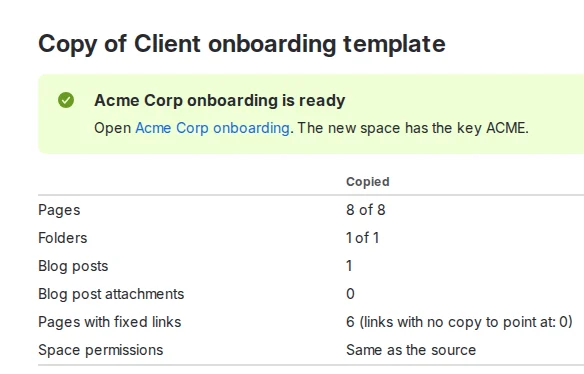
Then work through this list in the new space:
- Rewrite the space description. The copy takes over the template’s, and ours says “Copy this space for every new client.”
- Add the client’s or team’s people to the space, and to the restricted pages they need.
- Assign the kickoff checklist’s tasks and give them due dates.
- Recreate what the report names.
- Check macros that filter by space, such as Content by label. Fix links changes a macro’s space setting, not a space written into its filter query, so point those filters at the new space.
- Turn on public access if this space needs it: anonymous access never comes across.
- If the template has a custom look and feel, set it again. The copy opens with Confluence’s default.
- Ask the team to watch the new space, which starts with no watchers.
- Remove yourself from the space once the setup is done, if you don’t belong in it.
FAQ
- Do changes to the template reach spaces copied earlier?
- No. Each copy is a separate space. Change the template for future copies, and edit earlier spaces by hand where needed.
- Does Space Duplicator fill in the client’s name?
- No. Only links change in the copied pages. Write the client’s details into the pages the kickoff checklist names.
- Can I copy the template into a space I already have?
- Not with Space Duplicator, which creates a new space for every copy. Confluence’s Duplicate copies into any space where you have permission to add pages.
- Does this work in Confluence Data Center?
- Data Center has had a built-in Copy space feature since version 8.3, so a model space copies there without an app. Space Duplicator is for Confluence Cloud.